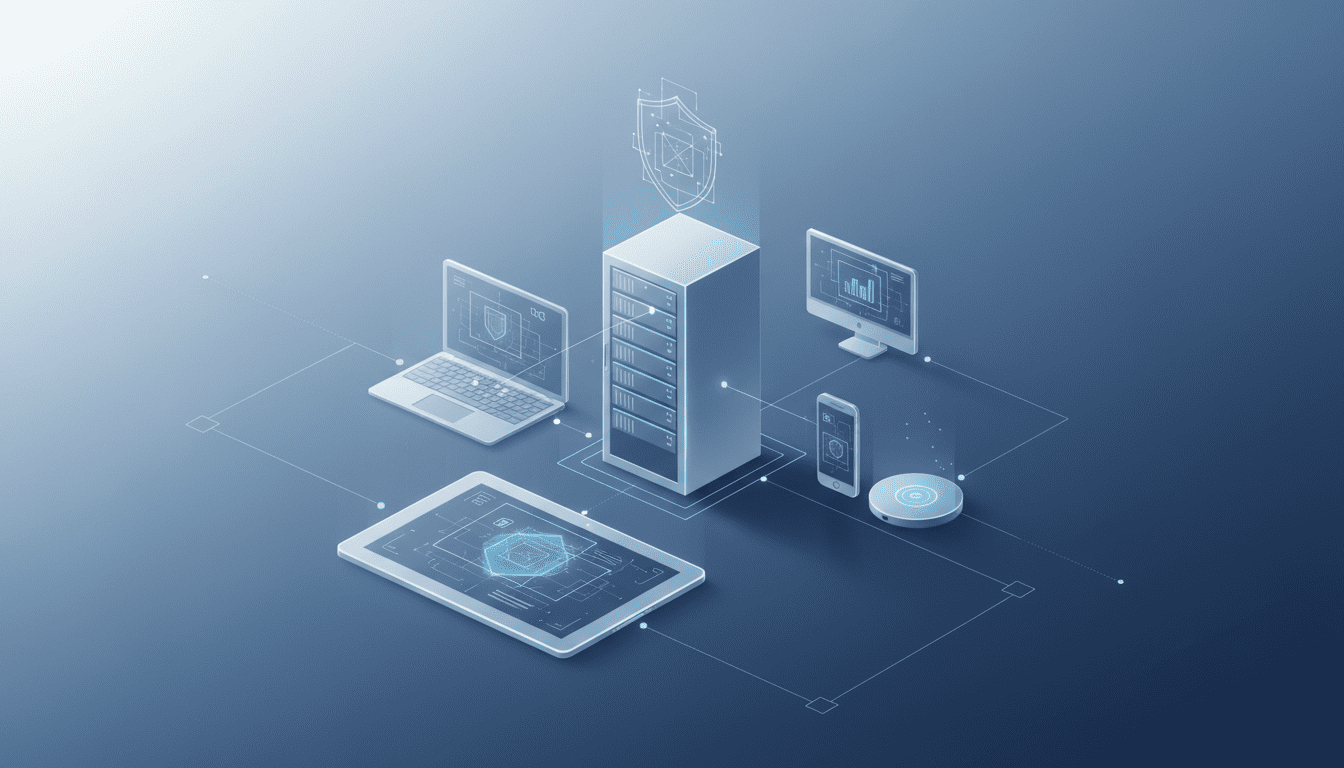
TeamViewer: A Practical Guide to Remote Access, File Transfer, and Secure Collaboration
TeamViewer guide for setting up remote access, securing sessions, transferring files, and using collaboration tools for IT support, remote work, and teams.
TeamViewer has become a go-to tool for remote access and support; this guide walks through how to use TeamViewer effectively, why it matters for IT and distributed teams, and the practical steps and security practices that keep remote sessions reliable and safe. Whether you need to connect to an unattended office PC, assist a colleague with troubleshooting, transfer large files across platforms, or run a collaborative meeting, understanding TeamViewer’s core functions and configuration options will speed deployment and reduce risk.




What TeamViewer Does and Who Should Use It
TeamViewer is a remote access and remote support platform that enables screen sharing, remote control, file transfer, and multi-user collaboration across Windows, macOS, Linux, iOS, Android, and IoT devices. Organizations use it for break/fix IT support, managed services, secure remote work, and cross-site collaboration. Individual power users rely on it for accessing home machines, transferring files, or helping friends and family. Enterprises choose subscription tiers that add centralized management, single sign-on, audit logging, and integrations with service desk or security tooling.
Getting Started: Installing and Configuring TeamViewer
Download the appropriate installer for the operating system and follow the vendor’s onboarding prompts to install either the full client or a lightweight QuickSupport module that requires no install on the remote end. When setting up TeamViewer for recurring access:
- Install the TeamViewer full client on the host (the machine you will access later).
- Create and verify a TeamViewer account linked to that device.
- Assign the device to your account to enable unattended access.
- Configure a strong device password and enable two-factor authentication for the account.
- Add the device to a company-managed group or host list if you use centralized endpoint management.
These steps let you move beyond one-off connections to reliable, auditable remote sessions that integrate with IT workflows. For temporary guest support, have the remote user run QuickSupport or the meeting client to generate a session ID and one-time access token.
Remote Control and Unattended Access: How It Works
TeamViewer uses a client–server architecture: both the controller (the technician or user initiating the session) and the remote endpoint connect to TeamViewer’s relay/connection servers. After authenticating, the two endpoints negotiate a direct or proxied connection and exchange encrypted session traffic that carries screen updates, keyboard/mouse events, and file transfer streams.
Unattended access is enabled by installing the full client on the remote machine and setting up a permanent password tied to your TeamViewer account. With unattended devices added to your account, you can initiate remote control sessions without requiring a remote user to grant access each time. Session initiation, permission management, and device grouping are controlled from the TeamViewer Management Console or the desktop client.
Secure Connections: Authentication, Encryption, and Best Practices
Security is central to any remote access deployment. TeamViewer sessions are encrypted, but correct configuration and process controls determine how secure they are in practice.
- Encryption and authentication: Use strong, unique passwords for unattended access and enable two-factor authentication for all TeamViewer accounts. Where supported, enable single sign-on (SSO) integrated with your identity provider.
- Access control: Define whitelists and blocklists, limit access by group or role, and require confirmations for sensitive actions. Use session policies to restrict file transfers or clipboard sharing when necessary.
- Audit and logging: Enable session recording and maintain comprehensive logs for compliance and incident investigation. Integrations with SIEM tools help surface anomalies across large estates.
- Network controls: Where possible, permit direct connections through firewall and NAT traversal to reduce reliance on relayed traffic and to improve performance. Use VPNs or private network links for highly sensitive systems.
- Device hardening: Keep host systems patched, restrict administrative privileges, and apply endpoint protection. Avoid storing plaintext credentials or reusing generic passwords.
Applying these controls alongside organizational policies for remote access reduces exposure and ensures remote sessions are appropriate, tracked, and reversible.
File Transfer, Printing, and Session Collaboration Tools
TeamViewer’s session capabilities extend beyond simple screen sharing. Key features include:
- File transfer: Drag-and-drop file transfer and folder synchronization let you move files between local and remote machines with support for large payloads. Use the built-in transfer manager instead of clumsy email or consumer cloud links for sensitive documents.
- Remote printing: Print documents from a remote host to a local printer or to a designated networked printer, useful for branch offices and field teams.
- Chat and VoIP: In-session chat and audio/video calls reduce the need for separate conferencing tools during troubleshooting or training.
- Multi-user sessions: Invite multiple participants for joint troubleshooting, pair programming, or training; assign view- or control-level permissions per participant.
- Whiteboard and annotation: Mark up the remote screen to point out UI elements, demonstrate workflows, or guide users through steps.
- File sharing persistence: For frequently used assets, utilize shared folders or the Management Console storage options so teams don’t repeatedly transfer the same files.
Together, these features support routine IT operations, developer collaboration, and remote onboarding without switching context between tools.
Cross-platform Support and Mobile Use Cases
TeamViewer supports a broad set of platforms, making it suitable for heterogeneous environments. From desktops and laptops to tablets, phones, and devices running embedded Linux, the platform allows access to a wide range of endpoints. Mobile-to-PC and PC-to-mobile control enable field technicians to access mobile apps, capture logs, or guide users through device settings. Mobile apps also provide quick mobility for IT teams who need ad-hoc access on the go. Given this flexibility, organizations can standardize remote support approaches across employees and contractors regardless of device mix.
Integration, APIs, and Developer Tools
For teams building integrated workflows, TeamViewer offers APIs and developer tools to embed remote support into service desk systems, CRM platforms, or custom automation. Typical integrations include:
- Service desk and ticketing: Launch sessions from within tickets, attach session recordings, and push asset metadata back to the ITSM tool.
- CRM workflows: Trigger customer support sessions from CRM records, improving context and reducing time-to-resolution.
- Automation: Use APIs to provision unattended devices, update device groups, and automate onboarding for new endpoints.
- Scripting and remote management: Combine TeamViewer with configuration management and remote execution tools for patching or routine maintenance.
These integrations let organizations treat remote access as part of a broader technology stack that includes monitoring, security, and automation platforms.
Use Cases Across IT, Remote Work, Education, and Healthcare
TeamViewer finds broad adoption across verticals:
- IT support: Centralized dashboards, session recording, and multi-technician sessions make TeamViewer a practical tool for help desks and managed service providers.
- Remote work: Employees can access office desktops, internal tools, and licensed software from home without duplicating installations or VPN complexity.
- Education and training: Instructors can demonstrate software, annotate student screens, and provide one-on-one guidance for lab environments.
- Healthcare: With appropriate controls and audit trails, providers can use remote sessions for teleconsultation and device maintenance, but must ensure HIPAA and local privacy compliance.
- Field services and manufacturing: Remote experts can guide on-site technicians using mobile video and screen annotation to reduce travel and downtime.
These use cases highlight the operational efficiencies in support, productivity, and cost savings that remote access platforms enable.
Comparisons: Competitors and Related Technologies
TeamViewer competes with several remote access and collaboration platforms, each with trade-offs worth considering:
- Remote desktop protocol (RDP) and VPN: Native RDP offers direct desktop access, but often lacks cross-platform convenience and built-in collaboration features.
- Other vendors: Solutions like AnyDesk, LogMeIn, and commercial VDI offerings provide similar remote control capabilities with different pricing, performance characteristics, and enterprise feature sets.
- Unified communication and collaboration: Platforms such as Zoom or Microsoft Teams offer screen sharing and meetings but are not focused on remote device control and typically lack built-in file transfer for remote maintenance.
- Security and access management: Identity providers, PAM (privileged access management), and endpoint security solutions form the broader ecosystem that should integrate with remote access tooling for layered defense.
When evaluating tools, weigh performance, platform compatibility, security features, auditability, and the ability to integrate with existing IT workflows.
Troubleshooting Common Problems and Performance Tips
Real-world deployment surfaces recurring issues; the following practices improve reliability:
- Session lag: Check network latency and bandwidth; prefer direct connections over relayed ones and enable hardware acceleration when available. Limit screen resolution or color depth for constrained networks.
- Connection failures: Verify firewall and NAT settings; ensure the TeamViewer service is running and that the device ID is current. Confirm licensing does not restrict simultaneous sessions.
- Authentication problems: Reset cached credentials, verify account ownership, and ensure two-factor tokens are synchronized. For domain-joined devices, check SSO configuration and group policy impacts.
- File transfer issues: Switch to the transfer manager, confirm storage quotas, and ensure antivirus or DLP tools are not blocking the payloads.
- Mobile sessions: Differences in input model and OS permissions can complicate control; guide remote users to grant the required accessibility and screen-capture permissions.
Document common errors in an internal knowledge base and provide step-by-step troubleshooting checklists for support staff to reduce mean time to resolution.
Licensing, Compliance, and Enterprise Considerations
Licensing models range from free for personal use to commercial subscriptions with per-technician or per-endpoint pricing. For enterprise deployments consider:
- License alignment: Match license type to use-case—support organizations typically need technician seats, while companies with many unattended devices may opt for endpoint licenses.
- Compliance: Ensure session recording, data retention, and logging practices meet industry regulations (e.g., GDPR, HIPAA). Review data residency and contractual terms if session relays pass through third-party servers.
- Procurement and cost control: Consolidate licenses under centralized management, audit usage patterns, and avoid overprovisioning by reallocating dormant seats.
- Vendor risk and SLAs: Evaluate uptime guarantees and support options for business-critical workloads.
A formal governance policy for remote access ensures legal, security, and budgetary alignment for enterprise-scale use.
Impact on Developers and IT Operations
For developers and operations teams, TeamViewer affects both workflows and system design. Remote access simplifies debugging, remote testing, and incident response, reducing the friction of diagnosing environment-specific bugs. When integrated with CI/CD and observability tooling, it can shorten triage cycles by providing direct access to problematic nodes. However, unmanaged remote access can introduce security blind spots; operations teams should enforce least privilege, require temporal elevation for sensitive sessions, and capture telemetry for post-incident analysis. In regulated industries, developers must work with security and compliance teams to ensure that remote sessions are auditable and that sensitive data exposure is minimized.
Practical Reader Questions Addressed Naturally
TeamViewer enables remote control, screen sharing, file transfer, and collaboration across platforms while encrypting session traffic and offering management features suitable for teams and enterprises. It works by connecting both endpoints to TeamViewer’s servers to establish an encrypted channel; where possible, endpoints negotiate a direct connection for performance. It matters because it reduces mean time to repair, enables flexible remote work models, and centralizes troubleshooting across devices. Anyone from individual users to large IT organizations can use it—choose QuickSupport for ad-hoc guest support or the full client plus enterprise controls for continuous management. Availability is immediate: install the client or use the web-based options to start; enterprise features depend on the subscription tier purchased by the organization.
Best Practices for Day-to-Day Use and Governance
Adopt the following operational practices to keep TeamViewer deployments efficient and secure:
- Use a centralized Management Console to group devices, enforce policies, and monitor session activity.
- Enforce two-factor authentication and SSO for account access.
- Limit persistent administrative access; prefer temporary elevation for sensitive tasks.
- Record sessions that involve changes to systems or privileged operations and retain those records according to policy.
- Regularly rotate unattended access passwords and verify device ownership during audits.
- Provide training and run tabletop exercises for incident response that include remote session forensic steps.
- Include remote access scenarios in your business continuity planning and maintain a small set of alternative access methods.
These practices minimize risk while preserving the operational benefits of remote access.
The remote support and access landscape continues to evolve, with tighter integration expected between remote access platforms, identity providers, endpoint detection and response systems, and automation frameworks. Advances in endpoint authentication, AI-assisted troubleshooting, and zero-trust network design will shape how teams use tools like TeamViewer: automated session workflows could suggest fixes, enrich session context with telemetry, and ensure that access is appropriate, time-limited, and fully auditable. As organizations standardize hybrid work and distributed operations, remote access tools will likely move from ad-hoc utilities to centrally governed platforms that tie into broader security, CRM, and developer toolchains—reducing friction while increasing control and visibility across the enterprise.