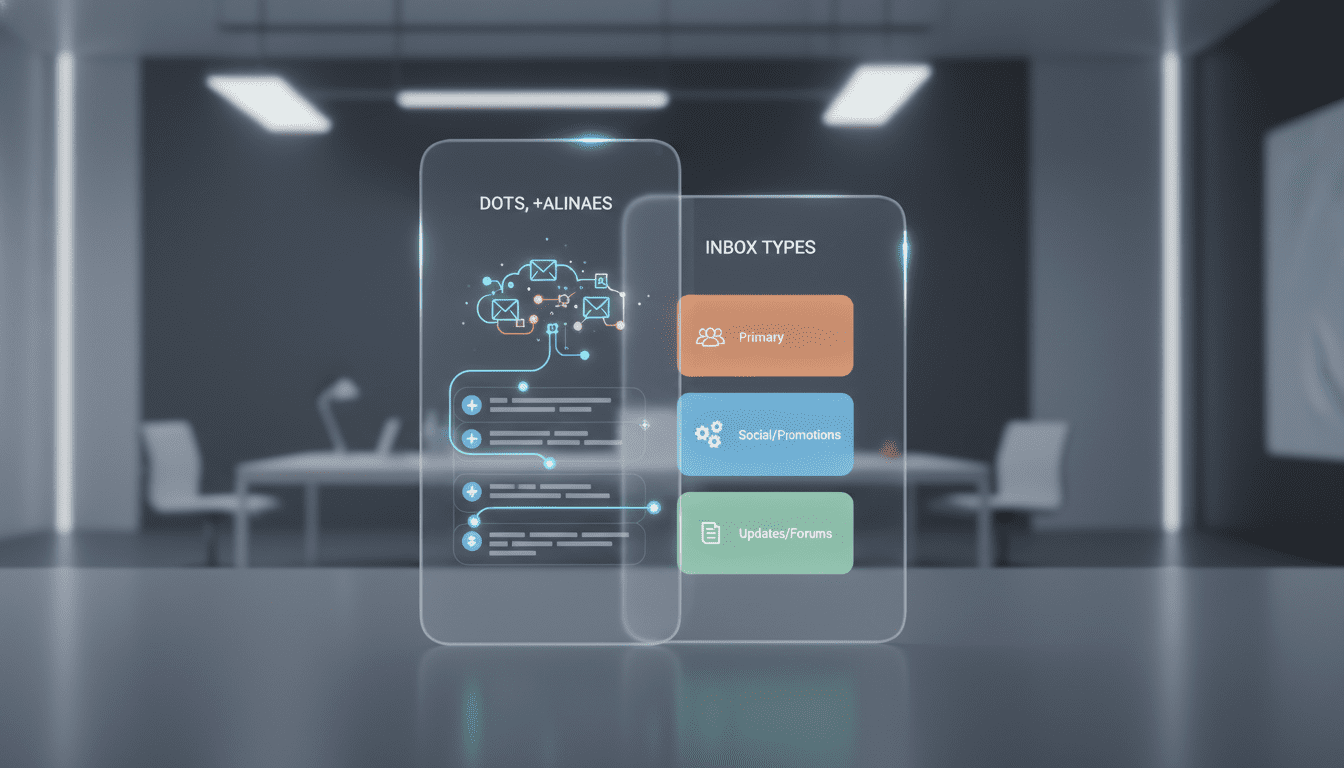
Gmail: Use Dots, Plus Aliases, and Inbox Types to Automate and Declutter Your Mail
Learn how Gmail filters, dot addressing, plus aliases, and Inbox types can automate sorting, reduce noise, and restore control over an overflowing inbox today.
Gmail filters and address aliases are among the simplest, most underused tools for regaining control of a crowded mailbox. Whether you’ve kept the same Gmail address for years or manage mail for a small team, small formatting tricks—dots in usernames and plus-addressing—combined with judicious use of filters, labels and Inbox types can route newsletters, receipts, and work messages where they belong without manual triage. This article explains how these features work, shows practical setups, highlights business and developer implications, and offers workflows that make email management sustainable.




Why Gmail Aliases and Filters Matter
Email accumulates fast. Unchecked, it becomes a time sink: hunting for invoices, missing customer messages, and being distracted by irrelevant mail. Gmail filters let you move messages automatically based on sender, recipient, subject, or search operators; aliases let you give different services or contacts distinct variants of your address without creating new accounts. Together they create a light-weight routing system that reduces context switching, improves response time for important messages, and simplifies archival and compliance for businesses.
How Dot Addressing Works and How to Use It
Gmail ignores periods in the local part of your email address (the part before @). That means [email protected], [email protected], and [email protected] are functionally the same destination. This behavior is platform-side: Google delivers all messages to your single mailbox regardless of where the dots appear.
Practical uses:
- Use one variant for personal contacts and a dotted variant for colleagues or contractors so you can filter work mail into a separate label.
- Use different dotted versions when giving your address to services or mailing lists you trust less; it’s a lightweight way to visually identify the origin of messages in your archives.
- Combine dotted addresses with filters so mail sent to a specific variant skips your primary inbox and goes straight to a label or archive.
Limitations and caveats:
- Dot addressing does not create separate inboxes or identities; all mail still arrives in your Gmail account.
- Dots don’t prevent tracking: senders can still fingerprint or tag messages via headers, tracking pixels, or unique links.
- Some non-Google services might normalize or reject dotted variants when you register; always test when signing up for critical services.
Setting Up a Filter in Gmail: Step-by-Step
Filters are the operational heart of automated sorting. A typical flow to route mail sent to a dotted alias looks like this:
- Open Gmail settings (click the gear icon and choose See all settings).
- Navigate to Filters and Blocked Addresses and choose Create a new filter.
- In the To field, type the dotted version of your address you want to capture.
- Click Create filter to move to action selection.
- Select actions such as Skip the Inbox (Archive), Apply the label (choose or create one), Mark as read, or Forward to another address.
- Optionally check Also apply filter to matching conversations to move existing messages into the label immediately.
- Save the filter.
Tips:
- Use Gmail’s advanced search operators in the filter form (from:, subject:, has:attachment, larger:, newer_than:) to craft precise rules.
- Test a new filter by sending yourself messages to the alias first.
- Avoid overly broad filters that might hide important mail; prefer layered rules that combine recipient and sender or subject constraints.
Plus Addressing: Create Contextual Aliases on Demand
Plus addressing appends a plus sign and text to your username: [email protected] → [email protected]. Gmail treats the address before the @ as the same destination, so these aliases are delivered to your inbox without additional setup.
Why use plus aliases:
- Manage signups: use +shopping, +banking, +newsletters to tag sources at signup and funnel those messages into dedicated labels.
- Track leaks: if a vendor’s database is compromised, the alias used for that vendor reveals the origin of the leak.
- Easy revocation: changing the filter or disabling forwarding for a given alias is simpler than changing an account password or opening a new inbox.
Operational note:
- Some services may not accept addresses containing plus signs as valid input. If you encounter registration problems, use a dotted alias or a dedicated address instead.
Practical Workflows Using Dots and Plus Aliases
- Personal vs. Work: Give family your plain address and give contractors the dotted variant. Filter contractor messages into a “Contractors” label and set notifications only for that label during working hours.
- Shopping and Receipts: Sign up for retail sites with your +shopping alias, then filter all mail to a “Receipts” label for monthly reconciliation.
- Newsletters and Growth Hacking: Use +newsletter or variants of plus-addresses when subscribing to media; combine with a “Read Later” label and batch-process those messages with snooze or labels.
- Account Management: Use unique aliases for banking or critical services; create a filter to mark those messages as Important and forward them to a secondary email for redundancy.
How to Customize the Inbox View for Faster Triage
Gmail’s Inbox Type options let you prioritize which messages appear first, which can be more effective than creating many labels and filters. Inbox options include Unread first, Important first, Starred first, Priority Inbox, and Multiple Inboxes.
How to change it:
- Click the gear icon and choose See all settings, then Inbox.
- Choose an Inbox Type and configure sections (for Multiple Inboxes you can set custom search queries to define panes).
- Use Customize below the options to tweak counts and which tabs (Primary, Social, Promotions) show up.
When to use which:
- Unread first is helpful when you want a simple zero-inbox workflow.
- Important first uses Google’s importance markers and works best if you consistently mark or interact with priority senders.
- Multiple Inboxes is powerful for power users who want a split-view of high-priority threads, flagged support tickets, or messages assigned to a team alias.
Why These Tools Matter for Teams and Businesses
For small teams and SMBs, aliases and filters provide near-immediate organization without provisioning new addresses or complex mail servers. Use cases include:
- Shared signups: a team member can use a +team alias to ensure messages go to a shared label that team triage uses.
- Compliance and records: route invoices or contractual communications into a labeled folder for archival and audit trails.
- Customer support routing: for light-weight ticket systems, filters can tag incoming messages and forward them to a helpdesk or task board via automation tools.
For enterprises, while aliases are helpful, centralized identity and account management usually relies on dedicated domains, mail routing rules, and MDM/SSO integration. Gmail aliases are most effective at the individual level or for small cross-functional workflows.
Integrations: Automation Platforms, CRMs, and Developer Tools
Aliases and filters pair well with automation platforms and developer workflows:
- Zapier / Make / IFTTT: trigger automations when mail matches a filter (e.g., create a Trello card for messages to +sales).
- CRMs: use aliases when creating new contact records so inbound mail is automatically grouped and easy to import into CRM systems.
- Email parsing tools: filters can direct vendor emails to parsers that extract order numbers or invoice amounts and push them to finance systems.
Developers can also use aliasing to programmatically test signups and detect duplicate registrations. For product teams, monitoring which alias a user signs up with can reveal acquisition channel performance without altering landing pages.
Security, Privacy, and Deliverability Considerations
- Spoofing and phishing: an alias doesn’t add security. Phishing messages can be addressed to any variant of your email; rely on authentication standards (SPF, DKIM, DMARC) and cautious inspection of links and attachments.
- Deliverability: Some senders or mailing lists rewrite recipient fields. Filters that depend on the To field may miss messages where the To has been rewritten; consider combining rules with subject or header indicators.
- Privacy: Using unique aliases can help track which services share your address, but it’s not a substitute for privacy-preserving tools like burner addresses, temporary email services, or dedicated domain aliases.
Common Problems and Troubleshooting
- Filter not catching messages: confirm the filter’s criteria and that you used the right alias in the To field. Use Gmail’s advanced search in the search bar to preview matching messages before applying a filter.
- Services rejecting plus addresses: if a site refuses a + alias, try a dotted variant or create a separate address.
- Moving existing mail: when creating a filter, check the option to apply it to matching conversations to retroactively move mail into a label.
- Over-filtering: if important messages are being archived prematurely, add additional filter conditions (e.g., AND sender or subject) or disable Skip the Inbox while you refine the rule.
Productivity Patterns: How to Make These Features Stick
- Start small and iterate: implement one filter for a pain point (e.g., receipts) and refine over a week.
- Combine with Gmail features: use snooze, stars, and priority markers in tandem with filters to implement a lightweight Kanban for inbox items.
- Notification hygiene: turn off push notifications for bulk labels and keep alerts for labels that indicate urgent work.
- Monthly review: audit aliases and labels periodically—merge or delete ones you no longer use to avoid rule sprawl.
When to Use Separate Accounts Instead of Aliases
Aliases are ideal for sorting and tracking but are not the right answer for every need:
- Use a separate account when you require different credentials, separate calendars, or strict isolation of work and personal data.
- For privacy or legal separation (e.g., client confidentiality), a dedicated address and account are safer than aliases.
- If a mailbox is shared across a team, a shared mailbox or a delegated account with formal access controls is preferable.
How These Techniques Fit Into the Broader Productivity and Security Landscape
Gmail’s aliasing and filtering features are part of a broader ecosystem of productivity and security tools. They sit alongside automation platforms, CRM systems, identity providers, and AI triage tools. As inbox volumes continue to increase, lightweight, client-side routing—combined with server-side authentication and automation—offers a pragmatic middle ground for individuals and small teams who need structure without heavy administrative overhead.
For developers and product managers, aliasing gives a rapid way to instrument signups and trace channels without deploying additional analytics code. For IT and security teams, alias patterns and filter usage can indicate user behaviors that either reduce risk (less manual forwarding) or introduce policy gaps (sensitive data routed to third-party automations).
Practical Example Workflows to Try This Week
- Monthly finance sweep: sign up merchants with +receipts, filter to a Receipts label, and use a parser automation to extract totals into a spreadsheet.
- Project triage: create a dotted variant for a new project, ask contributors to email it, and set a filter that forwards those messages to a project management tool.
- Newsletter batching: subscribe with +newsletter, apply a label and a filter to mark as read and archive—check that label once a week for curated reading.
Internal link phrases to explore for more Gmail tips: how to unsend an email in Gmail, schedule an email in Gmail, and Gmail search operators for power users.
Privacy-conscious readers may also want to compare aliases with temporary email services or custom domains to understand trade-offs in control, deliverability, and identity separation.
Gmail’s addressing quirks—dots and plus signs—are low-friction, no-cost tools that let you build meaningful automation without leaving the inbox. They don’t replace more formal mail routing or enterprise mail policies, but for individuals and small teams they provide immediate gains in clarity, response time, and archival organization.
Looking ahead, expect inbox management to continue evolving: AI-assisted triage that understands your priorities, smarter label suggestions based on interaction patterns, and tighter integrations with CRM and automation platforms could further reduce manual email labor. For now, mastering simple Gmail filters and aliases gives you robust, immediate control over the signal in a noisy inbox and a foundation to layer more advanced automation and security as your needs grow.