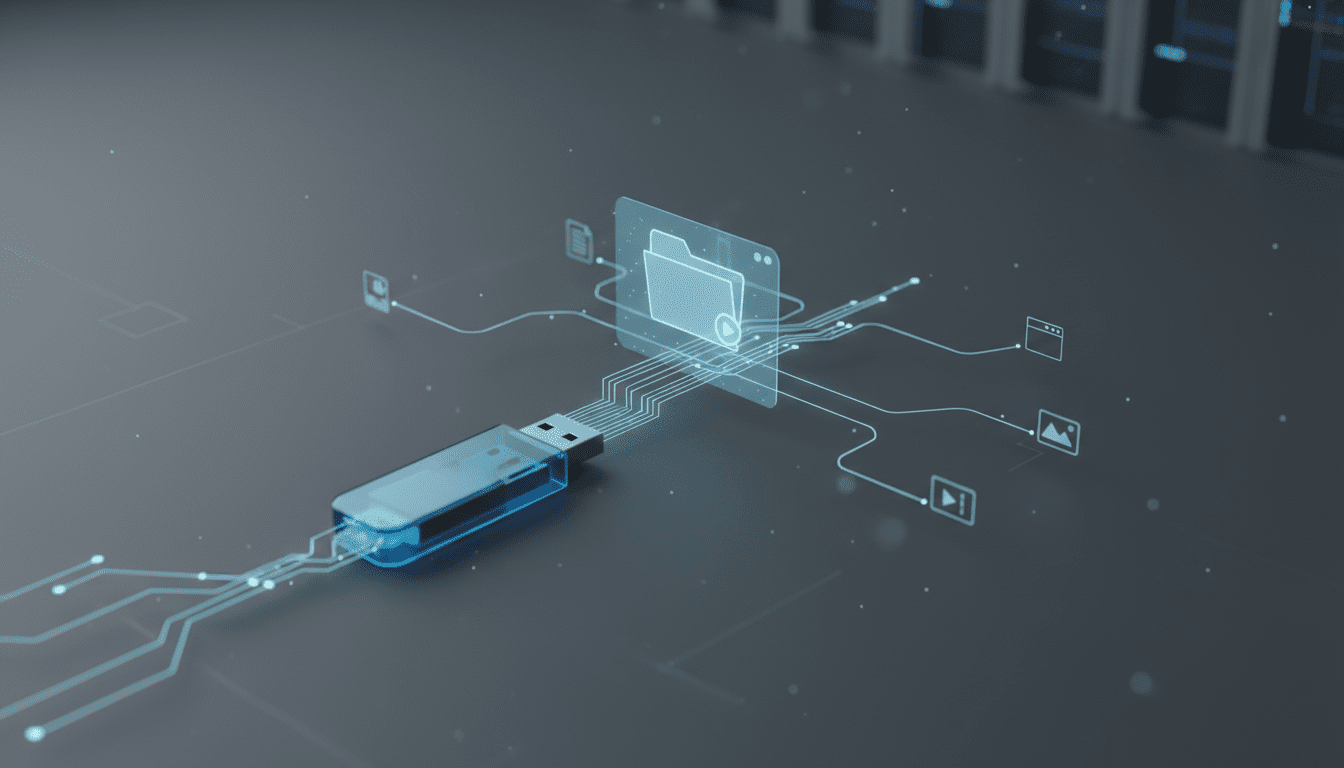
PortableApps: Carry Full Windows Applications on a USB Drive and Run Them Anywhere
PortableApps lets you carry full Windows apps on a USB drive; this guide explains how PortableApps installs, works, and why developers and businesses choose it.
What PortableApps Is and Why It Still Matters




PortableApps is a platform for running full-featured Windows applications from removable media without installing them on a host PC. At its core the project packages familiar desktop software—browsers, editors, productivity tools, utilities—into self-contained folders that store settings and binaries alongside the runtime. That makes it simple to move an entire working environment between machines, save configuration to a flash drive or external SSD, and avoid leaving persistent traces on a host system. For professionals who need mobility, IT teams handling shared machines, or developers who want a consistent, portable toolchain, PortableApps remains a practical, low-friction option.
How PortableApps Installs and Starts on Removable Media
Installing PortableApps is intentionally straightforward. After downloading the PortableApps installer, users point it at a USB flash drive, external SSD, or local folder. The installer creates a compact launcher—commonly Start.exe—alongside an Apps directory where portable applications live. From the launcher you browse and add apps via a built-in catalog, which downloads chosen packages into the drive and registers them with the PortableApps menu. Once installed, individual applications run directly from their folder; settings and user data are stored inside the same location so the entire runtime moves with the drive.
What PortableApps Actually Does When You Run an App
When you launch a portable application, PortableApps performs a few essential tasks to make the software behave like an installed program while avoiding system changes. The launcher isolates configuration by redirecting user settings, cache, and profile files into the app’s folder. It adjusts environment variables or temporary directories as needed, and it can cleanly revert changes when the app closes. This approach lets many applications run without administrator rights and keeps the host system’s registry and user profile largely untouched. For many mainstream Windows applications the effect is nearly indistinguishable from a standard install—except the app and its data stay on the drive.
Managing the PortableApps Catalog and App Updates
PortableApps ships with an integrated app store experience—selecting “Get More Apps” from the launcher opens a curated catalog of portable builds. Users can check boxes for the applications they want and the platform handles download and installation into the Apps folder. Updates follow a similar flow: the launcher detects newer versions published to the PortableApps distribution channel and offers one-click upgrades that replace binaries while preserving local configuration. This curated approach reduces manual packaging work and helps keep portable software current without complex dependency management.
Security, Privacy, and IT Considerations
Carrying applications and data on removable media raises distinct security questions. Because PortableApps places application data on the drive, physical loss of the device can expose profiles, cookies, and saved credentials unless the user applies encryption. Many teams pair PortableApps with disk-level encryption tools or hardware-secured drives to mitigate risk. On the host side, running unknown third-party apps always carries the potential for malware or configuration leaks; organizations should maintain policies for trusted media, use endpoint protection tools that scan removable storage, and consider sandboxing or virtualization when stricter isolation is required. For privacy-conscious users, PortableApps’ self-contained storage model can also be an advantage: it makes it easier to remove all traces from a host machine by simply ejecting the drive.
Who Benefits Most from a PortableApps Workflow
PortableApps appeals to a broad set of users:
- IT administrators who provision shared lab machines and want standardized tools without reimaging each system.
- Consultants and contractors who need a consistent set of tools across client sites.
- Developers who want a portable toolchain for debugging, version control, or testing without changing a workstation.
- Journalists, students, and remote workers who use public or borrowed computers and need a private, portable workspace.
- Security teams that require ephemeral environments for incident response or forensics.
Because portable applications carry their settings with them, they are especially useful where continuity of configuration matters—extensions, profiles, and saved sessions move with the user.
Practical Installation Workflow and Best Practices
A simple, resilient installation workflow maximizes the benefits of PortableApps:
- Choose media sized for your needs—USB 3.0 flash drives are inexpensive for basic use; an external SSD delivers faster load times for heavier apps.
- Download the PortableApps platform from its official distribution source and run the installer. During the setup, point the installation target to the removable drive.
- Launch the platform’s Start executable from the drive. Use the built-in “Get More Apps” catalog to pick and install applications; the installer manages file placement and shortcuts.
- Configure each app once so settings are stored in the drive’s App folder. For sensitive data, enable encryption on the device or use application-level password protection.
- Maintain backups of the drive’s Apps folder to guard against failure or accidental deletion.
Treat the device like a personal machine: keep it updated, run regular malware scans, and safely eject before disconnecting to avoid file corruption.
Compatibility, Performance, and Limitations
Most PortableApps packages are built and tested for Windows desktop environments; compatibility across different versions of Windows is generally good but not guaranteed for every application. Some software relies on low-level kernel drivers, system services, or registered COM components and therefore cannot be made truly portable without significant reengineering. Performance depends heavily on the media: USB 2.0 sticks will create frustrating latency for modern browsers or IDEs, while NVMe-attached external SSDs provide near-native responsiveness.
Because the platform stores configuration and data on the drive itself, concurrency is limited—using the same drive simultaneously on multiple machines can corrupt settings. Additionally, networked features like single sign-on or enterprise licensing may assume persistent machine state and may not behave consistently when run from removable media.
How PortableApps Fits Into Larger Toolchains and Ecosystems
PortableApps is rarely an island. Many professionals combine it with cloud storage, password managers, and automation tools to create a richer portable workspace. For example, syncing a limited set of project files to a secure cloud folder complements a PortableApps toolset on a flash drive, while a cross-platform password manager provides secure credential access across machines. Developers might combine PortableApps with command-line utilities or containerized environments to replicate development workflows across machines without provisioning virtual machines. In regulated environments, PortableApps can complement endpoint management, mobile device management (MDM), and security information and event management (SIEM) systems by providing predictable, auditable application footprints.
Alternatives and When to Choose Them Instead
PortableApps is one of several strategies for portable or ephemeral computing. Alternatives include:
- Application virtualization and containerization (e.g., ThinApp, Cameyo) that encapsulate apps at a system level and can be streamed or run locally.
- Native Linux packaging like AppImage or Flatpak for portable Linux apps.
- Cloud-hosted desktop and application streaming that runs software in the cloud and streams only the UI to the client device.
- Virtual machines and containers that create entirely isolated environments but require more local resources.
- Commercial USB provisioning tools that create full “Windows To Go”-style images.
Choose PortableApps when you need a lightweight, file-based approach that minimizes host changes and keeps configuration local; choose virtualization or cloud streaming when you require stronger isolation, centralized provisioning, or OS-level compatibility beyond what portable builds can provide.
Developer and Business Implications
For developers, PortableApps highlights a pragmatic distribution model: package once, run on any compatible host without modifying the system. It lowers the barrier to testing because toolchains can be moved between test rigs without complex installs. For software vendors, offering a portable build can extend reach to users who cannot, or prefer not to, install software on host machines. For businesses, PortableApps simplifies certain workflows—temporary contractors, kiosk setups, or distributed audits can all benefit—but it places emphasis on endpoint policy, device encryption, and inventory control. IT teams should consider integrating portable device management into existing asset and security strategies.
Practical Questions Addressed in Context
PortableApps answers several pragmatic needs: it provides a way to run applications without requiring administrative installs; it keeps user settings tied to the portable drive; and it enables rapid on-the-go access to tools. It works by bundling apps into self-contained folders and routing configuration into those folders so the host sees minimal change. The platform matters because it reduces friction for professionals who move between machines or who need temporary access to a consistent environment. Anyone with a compatible Windows host can use it, and it’s available immediately from the project’s distribution site. For deployment at scale, organizations should evaluate security controls such as drive encryption, read-only provisioning, and endpoint scanning before permitting widespread use.
Troubleshooting and Practical Tips
If an app fails to run from the drive, check these common causes: the media is too slow—try a higher-performance drive; the application requires services or drivers not available in a portable context; antivirus or endpoint protection is blocking execution—whitelist trusted PortableApps directories with security teams; or file corruption due to unsafe ejection—always use the OS’s safe-remove features. To speed experience, put frequently used apps on faster media, and consider pairing PortableApps with portable support tools such as offline installers, logs collection utilities, or scripts that refresh local caches.
Integration Opportunities with Automation, Security, and AI Tools
PortableApps integrates naturally with modern automation and security workflows. Automation platforms can orchestrate the creation of standardized portable drives for onboarding; security teams can feed portable-device activity into SIEM tools to maintain visibility; and AI-assisted tooling can speed the packaging and testing of portable builds by automating compatibility checks or generating configuration profiles. For example, a developer automation pipeline could produce a PortableApps-friendly package as part of a continuous delivery process, while AI-driven testing could exercise portable builds across Windows versions to catch portability regressions.
Broader Implications for Software Distribution and User Control
PortableApps sits at the intersection of user autonomy and enterprise control. It emphasizes a user-centric model of software ownership: tools travel with the user rather than being tied to a single workstation. That model challenges traditional IT assumptions about device-centric provisioning and creates opportunities for more flexible, personal work patterns. At the same time, it underscores the need for updated policies: asset tracking, encryption, and endpoint hygiene must adapt to an environment where applications and data are mobile. For vendors and platform engineers, portable distribution forces clearer separation of configuration from system state—an architectural discipline that pays dividends for containers, cloud deployments, and cross-platform packaging.
When to Prefer PortableApps over Desktop Installs or Cloud Services
Choose PortableApps if you value quick setup, offline availability, and the ability to take your exact configuration between machines without admin rights. Prefer cloud-hosted apps when you need centralized data governance, multi-device synchronization, and minimal local storage. Opt for virtual machines or full imaging if you need complete OS-level parity or rigorous environment isolation. In many workflows, a hybrid approach—portable applications for the user tools plus cloud storage for data and centralized services for authentication—offers the best balance.
How Organizations Can Adopt PortableApps Safely
Organizations can adopt PortableApps by defining clear guidelines: mandate encrypted removable media, require device registration and inventory, restrict portable use to vetted app catalogs, and integrate portable-device logs into existing security monitoring. Training staff on secure ejection, backup procedures, and reporting lost devices reduces operational risk. When portable tools are used for sensitive work, combine device-level encryption with multi-factor authentication and role-based access to services to reduce the surface exposed by a lost or stolen drive.
Tips for Power Users and Developers Packaging Portable Apps
Power users and developers can get more from PortableApps by standardizing configuration templates, automating packaging, and using version control for the Apps folder where feasible. Document required environment tweaks and dependency expectations for each portable package, and test builds on multiple host OS versions. When distributing portable tools internally, sign packages and provide checksums to help recipients verify integrity.
PortableApps continues to offer a pragmatic path to mobility without wholesale reliance on the cloud or full virtual machines. As workflows become more distributed and hybrid work patterns persist, having a compact, portable toolset remains useful for troubleshooting, secure remote work, and fast onboarding. Looking ahead, expect ongoing convergence with container and automation tooling: better packaging pipelines, tighter security integration, and smarter update mechanisms will make portable software packaging easier to manage at scale while preserving the immediate benefits of a self-contained application environment.