Desktop Mode brings a desktop-style workspace to WordPress admin
Desktop Mode gives WordPress admin a desktop-style workspace with resizable windows, a left dock, multiple Spaces, an optional AI copilot, and plugin hooks.
A desktop-style workspace for WordPress admin


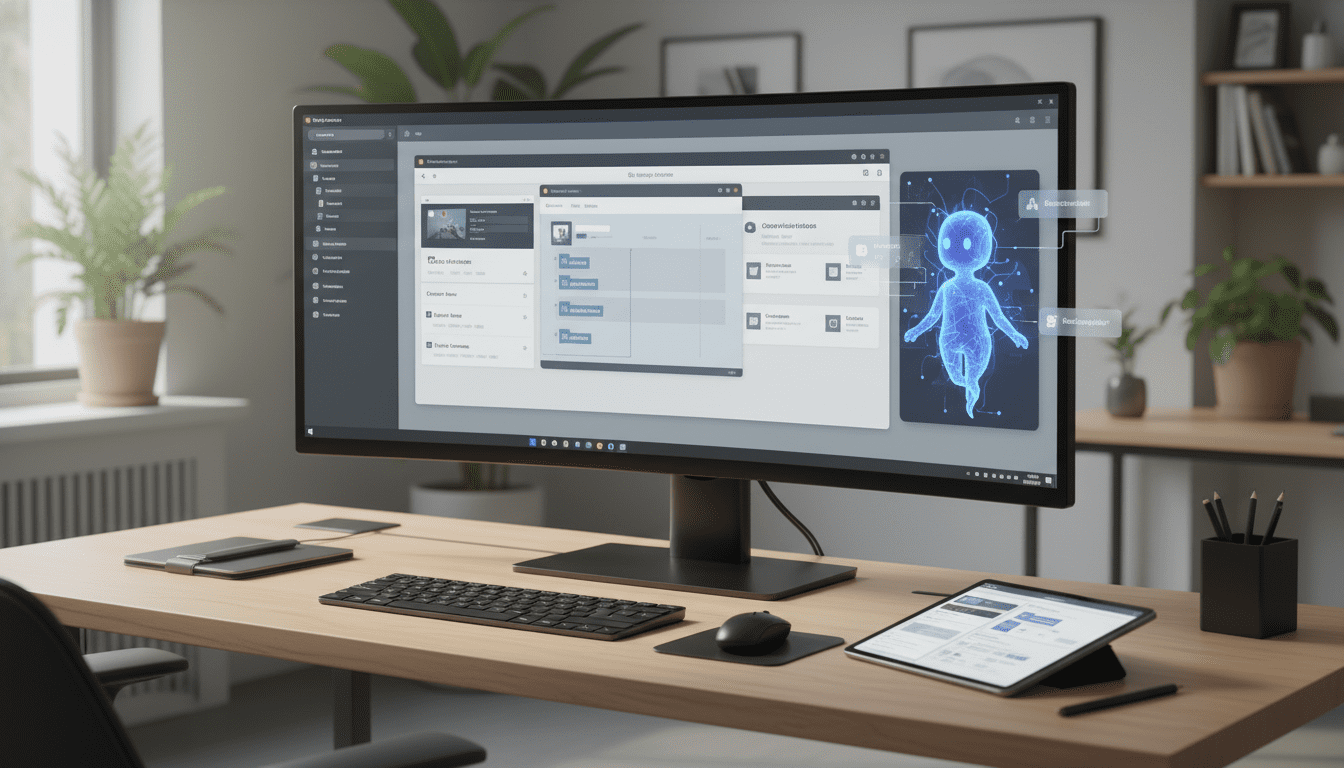
Desktop Mode, a free and open source plugin built by Automattic, converts the traditional WordPress admin into a desktop-style workspace that keeps your site, plugins, and data intact while changing how you interact with them. The extension surfaces Posts, Pages, Media and other admin screens as independent windows that can be opened, resized, and stacked; a persistent dock sits on the left of the interface; and virtual desktops called Spaces let users switch between separate workflows. The goal is not to replace WordPress but to run on top of it — the plugin operates entirely in the admin layer while your site’s frontend, store, and checkout remain unaffected.
How Desktop Mode reorganizes common workflows
At the heart of Desktop Mode is a windowed interface that reduces tab and page hopping. Individual pieces of content open as native windows, which lets you keep a draft next to the media library and drag files directly between them instead of switching browser tabs. Window layouts are preserved between sessions so you can pick up where you left off. A unified command palette (invoked with Cmd+K) provides fast, keyboard-driven access to the workspace, and a unified Recycle Bin consolidates trashed posts, pages, media, and comments in a single place.
Collaboration features are built into the workspace model: Desktop Mode supports shared folders where content can be sent for team review and approval prior to publication. Multiple Spaces let users segregate projects or workflows to avoid visual clutter. These elements are presented as part of the admin shell rather than separate interfaces, aiming to streamline editorial and operational tasks without changing the underlying WordPress content model.
What Desktop Mode’s optional AI copilot does
Desktop Mode includes an optional AI copilot that surfaces as a workspace tool. According to the plugin’s description, the copilot can search across a site’s content, locate posts by topic, surface related pages, and produce quick answers about what exists on the site. The architecture also allows third parties to integrate alternative AI providers, so the copilot can be wired to different models or services at the developer’s discretion.
Built to be extended by plugins
Extensibility is a core design point. Desktop Mode ships with hundreds of built-in hooks so third-party plugin authors can extend its behavior without altering the plugin’s core. Plugins can register native windows, add dock items and desktop icons, introduce commands, and expose AI tools directly inside the desktop environment. The source provides concrete examples of how this works: a booking plugin could open its calendar as a native window inside Desktop Mode rather than redirecting to a separate admin page, and a WooCommerce extension could present an orders dashboard inside the dock. The write-up also cites a developer — identified as Nick — who built a native plugin for Desktop Mode to test this extensibility, demonstrating the model in practice.
The plugin’s extensible architecture is presented as an application of the same principles that allow thousands of WordPress plugins to coexist: an open, hook-driven system that encourages integrations without requiring upstream changes. Because developers can register their own AI provider, Desktop Mode’s copilot can be adapted to different AI tools or in-house models where desired.
Technical footprint and impact on the live site
Desktop Mode runs entirely within the WordPress admin layer. The plugin’s authors emphasize that this design keeps the site’s frontend, store, and checkout experience untouched. Activating Desktop Mode is a per-user opt-in: enabling it affects only the user who turns it on, leaving other team members on the classic admin until they choose to opt in themselves. That model lets teams experiment with the workspace without imposing changes globally.
Because Desktop Mode operates as an admin shell layered on top of an existing WordPress installation, it relies on the site’s current plugins and configuration rather than replacing them. The plugin preserves your setup and claims to save and restore individual users’ window layouts between sessions, so users return to their personalized workspace each time.
Installation and activation flow
Desktop Mode is distributed as a standard WordPress plugin and is free for all WordPress users. The provided installation steps are a typical plugin workflow:
- Download the plugin from the WordPress plugin repository or install it via Plugins → Add New → Upload Plugin.
- Upload the plugin folder to /wp-content/plugins/.
- Activate the plugin through the Plugins screen in WordPress.
- Click the desktop icon in the admin bar’s top-right corner to load the admin inside the desktop shell.
- Click the same admin-bar icon again to return to the classic admin.
Because activation is per-user, installing and activating the plugin on a site does not automatically change the experience for all users; each person must use the desktop icon to enter the desktop shell.
Who can use Desktop Mode and where it fits in workflows
Desktop Mode is presented as useful for anyone who manages content or site operations in WordPress and prefers a more contiguous workspace. Its features — independent windows for posts and media, drag-and-drop between windows, Spaces for separating projects, shared folders for review, and a unified command palette — address common friction points for editors, content teams, and site managers who juggle multiple admin screens.
Developers and extension authors are an explicit audience as well: the plugin’s hook surface and registration APIs are designed so extensions can integrate directly into the desktop environment. The examples of booking and WooCommerce integrations point to practical use cases where tools normally siloed in separate admin pages can be surfaced as first-class elements inside the workspace.
Open source development and community maintenance
Automattic maintains Desktop Mode and the project is open source with its code available on GitHub. Contributions are open to the community, and the plugin is framed as a foundation that others can build on. The announcement notes that Desktop Mode was already running on hundreds of sites in its first week, and that both Automattic and the wider community are actively developing and extending it. That combination of corporate stewardship and community contribution mirrors other WordPress-led projects where an upstream repository and plugin hooks invite third-party development.
Implications for developers, agencies, and platform teams
Desktop Mode signals a shift in how WordPress can present administrative experiences: instead of isolated admin pages, the workspace model offers a composable surface where third-party tools can appear as native elements. For plugin and theme authors, that means a new integration point — a chance to surface calendars, dashboards, or AI-driven utilities directly in the admin shell. For agencies and platform teams that manage many client sites, the per-user opt-in model allows controlled rollouts and staggered adoption without forcing a global admin redesign.
Because Desktop Mode exposes hooks for registering AI providers, it also creates an integration path between WordPress sites and AI ecosystems. Teams that already use AI tools for content research, summarization, or search can explore wiring those services into the copilot or creating custom AI-driven commands inside the workspace. The architecture encourages experimentation while maintaining the existing WordPress content and plugin compatibility model.
Practical considerations for adoption
Adoption starts with installing the plugin and opting in per user. Because Desktop Mode operates on top of the existing admin, teams can evaluate its effect on workflows without altering frontend behavior or checkout flows. Plugin authors interested in integration should look to the provided hooks to register windows, dock items, and commands; the project’s GitHub repository is the stated location for the code and community contributions.
Desktop Mode’s design decisions — persistent window layouts, a unified Recycle Bin, shared folders for review, and a command palette — are aimed at reducing friction for editorial teams and consolidating common admin tasks into a single, consistent interface. Those features may be particularly appealing to distributed teams and content operations that rely on review cycles and frequent media management.
The broader context for WordPress admin tooling
WordPress has long positioned itself as a platform that can be shaped by plugins and custom development rather than a one-size-fits-all product. Desktop Mode is framed as a continuation of that ethos: a reimagined admin surface that remains open for extension and community-driven evolution. By presenting admin functionality as a workspace rather than a collection of pages, the plugin aligns with broader trends in developer tools and productivity software that prioritize context switching reduction and composable interfaces.
The project also intersects with adjacent ecosystems such as WooCommerce (already cited as an example), booking plugins, and AI tools. Those links show how admin tooling can be more tightly integrated with the systems teams already use — an orders dashboard, appointment calendar, or AI content assistant can appear where users expect to work, rather than in separate tabs or modal overlays.
Looking ahead, Desktop Mode establishes a platform for further experimentation: plugin authors can surface new kinds of windows and tools; site teams can adapt their workflows around Spaces and shared folders; and AI providers can be connected into the copilot experience. Because the project is open source and maintained with community contributions, its evolution will reflect both Automattic’s roadmap and the plugins and extensions that developers choose to build.
The workspace model Desktop Mode introduces reshapes the WordPress admin into a composable environment where content, media, and extensions coexist in a single, windowed interface; as plugins and teams adopt the platform, expect to see a growing number of native integrations and workflow-focused tools that make the admin feel more like a purpose-built workspace than a stack of separate pages.